


Introducing Hyper-V Replica in Windows Server 2012

For small businesses, there’s often no easy answer when it comes to disaster recovery. With many storage and DR options out of reach, finding an affordable way to protect data can be challenging. But in Hyper-V Replica, Microsoft offers a new path to DR for many SMBs.
Usage Scenarios
Hyper-V Replica, one of many operational and performance improvements to Hyper-V in Windows Server 2012, allows users to replicate virtual machines over slow, unreliable network links. Replica is purely a DR solution and doesn’t replace clustering, but it can be used to replicate clusters of Hyper-V servers.
With Replica, SMBs can set up a DR site at a branch office (or at a remote site hosted by a service provider) and use Hyper-V to replicate the contents of selected VMs at 5-minute intervals.
Unlike most enterprise-grade replication technologies, Hyper-V Replica does not require a reliable, high-bandwidth network link between primary and DR sites. It’s designed to work with links that don’t run over dedicated lines, such as broadband or asymmetric digital subscriber line (ADSL) technologies, which may be subject to short outages.
The Replication Process
To begin, Hyper-V Replica creates an initial copy of the primary server. That file is then copied over, either manually or over the network, to the Replica server at the recovery site. Replica then writes to a log file (Hyper-V Replica Log, or HRL) on the primary server every time there’s a write operation. This HRL file is replicated on the Replica server and is replayed every 5 minutes, in reverse, replicating only changes made since the last replay.
Due to the 5-minute replication frequency, if the primary server goes offline, up to 10 minutes of data might be lost. If Hyper-V can’t replicate at the 5-minute interval, an alert is written to the event log. If replication fails for more than 30 minutes, the Replica server is put into a failed state and replication must be manually restarted — so it’s possible that an hour of data could be lost at the DR site.
The replication schedule is designed to keep the state of the operating system consistent after a failover to the Replica server. If it’s critical that applications remain consistent, Hyper-V Replica can be set to create additional Volume Shadow Copy Service (VSS) recovery points for this purpose.
Ensuring Security with Hyper-V Replica
Before implementing Hyper-V Replica, Windows Firewall must be configured to allow the necessary replication traffic to pass through. This applies as well to any other firewalls that separate the corporate intranet from the DR site. Replica comes with default Windows Firewall rules, but they must be enabled manually in the Windows Firewall with Advanced Security management console. There are two inbound rules:
- Hyper-V Replica HTTP Listener (TCP-In)
- Hyper-V Replica HTTPS Listener (TCP-In)
The HTTPS rule is needed only if certificate-based authentication is used. Hyper-V in Windows Server 2012 also includes a new simple authorization model in which a Hyper-V Administrators group is created on each server that hosts the Hyper-V role. Hyper-V Administrators can configure Replica servers to accept incoming connections from specific Hyper-V servers.
There are two different types of authentication that Hyper-V Replica uses. Kerberos, a network authentication protocol, is the default option, but certificate-based authentication allows replication between primary and Replica servers to be encrypted.
Integrated authentication uses the Kerberos protocol and can be established between trusted Active Directory domains. In the absence of Active Directory, X.509v3 certificates can be used instead of Kerberos. Replication Authorization Tags protect Replica VMs residing on a single server in a data center, which is useful for hosting service providers that need to stop clients from gaining access to Replica VMs other than their own.
Installing Hyper-V Replica
Replica works in both workgroup and domain scenarios, and Replica servers don’t need to be in the same AD domain as primary servers. The first step is to configure a Replica server in a branch office by adding the Hyper-V role. This is done either with Server Manager or by using PowerShell. Once the role is installed, the server must be restarted. The following PowerShell command will install the Hyper-V role and management tools:
Install-WindowsFeature -Name Hyper-V –IncludeManagementTools
Now open Hyper-V Settings in the Actions pane of Hyper-V Manager, click on Replication Configuration and select Enable this computer as a replica server in the Details pane. Choose an authentication method, and don’t forget to enable the default Windows firewall rules. In the Authorization and storage section, the system can be set to allow replication from any authenticated server or from a specific list of servers.
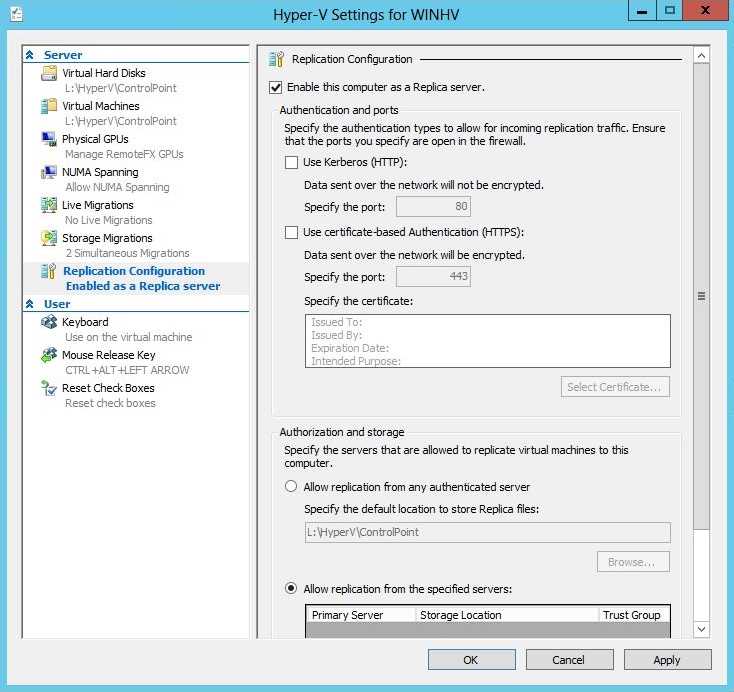
Figure 1 – Hyper-V Settings
VMs in the primary site can be enabled for replication with a simple wizard. In Hyper-V Manager, select a VM in the Details pane, right-click the VM and choose Enable Replication. The wizard allows a choice in how to perform the initial replication, which by default happens over the network. That may not be feasible or desirable over a slow network, so there’s also the option to perform the first replication using external media and then import the data at the Replica site.
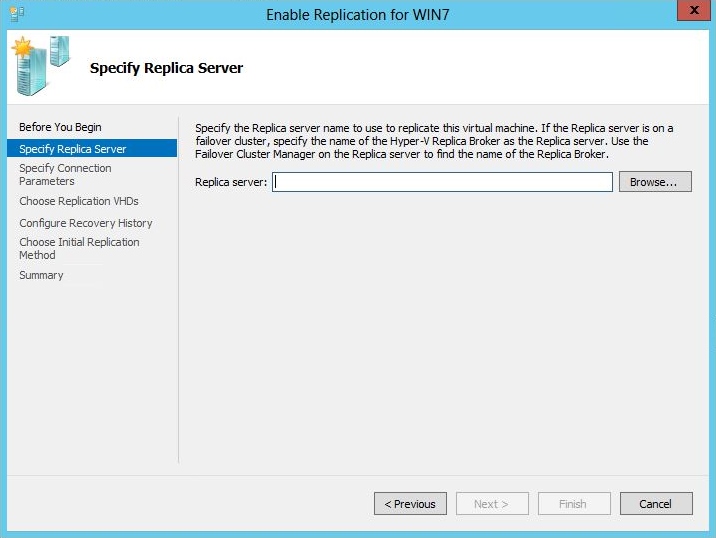
Figure 2 – Enable Replication Wizard
Failover
Hyper-V has a new section in the configuration option for each VM called Failover TCP/IP, where both alternative IPv4 and IPv6 addresses can be provided should the DR site have a completely different IP addressing scheme than the primary site. These addresses are used when a failover action is performed.
There are three kinds of failover:
- Test Failover
- Planned Failover
- Unplanned Failover
A Test Failover allows Hyper-V administrators to perform a failover without disrupting the primary server.
A Planned Failover should involve no data loss; the primary server will temporarily become the Replica server for the VM that has failed over. The VM on the primary server needs to be shut down beforehand, and the primary server must be configured as a Replica server.
An Unplanned Failover is not expected and is initiated from the Replica server at the DR site. A VM on the Replica server will be started from a Replica recovery point. This could result in some data loss.