


4 Answers to Frequently Asked Windows Questions

The personal computer has had a tremendous impact on user productivity since it became a central fixture of the workplace in the mid-1980s. With all this power suddenly at their fingertips, one office worker could now do the work of 10. Of course, with great power comes great responsibility — and occasionally great frustration.
Computers are supposed to be simple, logical devices that don’t think or have a life of their own? But if that’s really the case, why are they sometimes so mysterious? Let’s take the mystery out of four strange behaviors users might have seen while working with Windows-based PCs.
1. Where’s My Desktop?
Nothing is scarier to the average user than logging into Windows and not seeing all those shortcuts and files you’ve saved on your desktop. Yes, I know it’s not best practice to save stuff on your desktop, but almost all of us do this so we can quickly access what we frequently need.
Fortunately, Windows usually offers a helpful message concerning the problem in the form of a balloon notification or dialog box, depending on the version of Windows you’re working with. Examples of these messages range from “You have been logged on with a temporary profile” to “Your user profile was not loaded correctly” to “Windows cannot load your profile because it may be corrupted.” Maybe that’s not helpful to the average user, but how should help desk staff respond in such a situation?
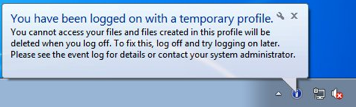
Figure 1: Example of temporary profile message
It’s critical to help the user get back to work, so tell them to log off and then log on again. Usually that solves the problem and the proper desktop magically appears. If the user turned off the computer after the problem appeared, tell them to turn it on, wait for the login screen, and then wait a few more minutes before logging on. When the day is almost over, send someone to inspect the user’s computer. Chances are, it’s the antivirus software on the system that’s grabbing exclusive file handles or the NTUSER.DAT registry hive within the user’s profile. This typically causes a sharing violation that prevents the user’s profile from loading.
Start by disabling the antivirus software, reboot the machine and ask the user to log on. If the problem persists, then it might be some other item that’s configured to launch at startup that is causing the problem. Try disabling programs that automatically run on startup. Use Autoruns, a Windows Sysinternals tool, to find such programs. If that doesn’t work, enable boot logging in Process Monitor, another Sysinternals tool, to track down the offending program.
2. What Are Those Funny Little Icons?
Some users panic when they see tiny changes on their desktop, while others are oblivious to everything except the Blue Screen of Death. The little yellow triangle with an exclamation point (known as the “yellow bang”) superimposed over the Network and Sharing icon in the system notification area of the taskbar (see figure) is one of those tiny signs that can sometimes confuse and sometimes help. Similar yellow bangs can sometimes be seen over the wireless connection icon or offline files Sync Center icons. What do they mean?

Figure 2: Yellow bang indicates some type of network issue.
Pointing to the icon sometimes helps.
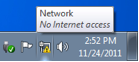
Figure 3: Tooltip for yellow bang
Aha! The router must be down! Call the guy that manages the router!
Other times the message may be less helpful:
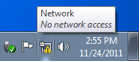
Figure 4: Another tooltip, this time pointing out that there's no "network access."
Maybe the LAN cable became unplugged from the back of the PC? What’s really mysterious is that both of these messages were displayed on the same Windows 7 minutes apart and were caused by the same hardware problem (the router became unplugged). Perhaps the moral here is that some things are meant to remain mysterious, except to those who have been initiated into the Mysteries of the Goddess Ping. Lesser mortals, however, can start with the Network Troubleshooter for Windows 7.
Another mysterious icon is the lock overlay that can sometimes appear on a file or folder:
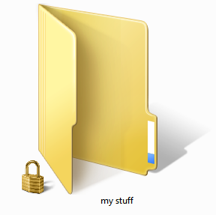
Figure 5: The lock overlay
There are lots of geeky explanations on the Internet concerning why this overlay may appear, but the bottom line is that the lock overlay indicates that the file is not inheriting permissions from its parent folder. Most of the time users can safely ignore this, but it’s hard to ignore when every file, folder and shortcut on your desktop has a lock on it. Yes, this can happen. In fact, it happened to someone I know when he moved (instead of copying) his files and folders from his old computer to a new computer. The question is, how can you get rid of the lock overlay when it annoys you? The answer: Open the Advanced Security Settings for the file or folder and select the “Include inheritable permissions from this object’s parent” checkbox shown below. Picking a lock was never easier.
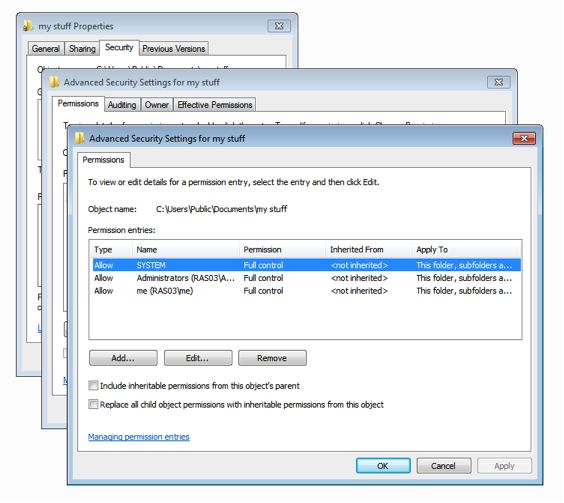
Figure 6: Removing the lock overlay
3. What Does It Mean When a Drive Says It's In Use?
Flash drives are a terrific convenience until the user tries to eject one by clicking on the Safely Remove Hardware icon in the system notification area and then sees this message:
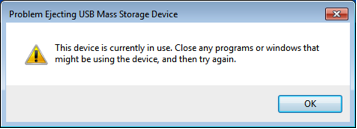
Figure 7: The device is currently in use.
So the user closes all the programs running on his desktop and tries to eject the media again. The same message and a phone call to the help desk quickly follow.
It’s usually OK to pull the flash drive from the computer without experiencing data loss. But if the user is paranoid, suggest the following:
- Click OK to close the “device currently in use” dialog.
- Open Task Manager and select the Processes tab.
- Select EXPLORER.EXE and click End Process to kill Windows Explorer.
- Your desktop and taskbar should have disappeared, but your programs will (hopefully) still be running.
- Switch to the Applications tab of Task Manager and click New Task.
- Type C:\WINDOWS\EXPLORER.EXE and click OK.
- Your desktop and taskbar will reappear.
- Now click the Safely Eject Media icon in the system notification area, and you should be able to remove your media without hassle.
Note that this method is really just as harsh a solution as simply pulling the drive. The correct approach is to shut down all your applications and log off and log on again, and then you should be able to safely remove the drive.
4. How Do You Erase Search History?
Finally, I heard a story about a user who needed to record a video demonstrating how to use the search feature of Windows 7. To do a proper demo, he needed to clear the drop-down search history displayed when clicking on a search box in Windows Internet Explorer. Start by opening Registry Editor and deleting the WordWheelQuery key found under: HKEY_CURRENT_USER\Software\Microsoft\Windows\CurrentVersion\Explorer.