


Simplify Storage Management in Windows Server

The demand for extra disk space can quickly spiral out of control if not kept in check, and given the opportunity, users will store anything and everything on their hard drives. It’s not uncommon to find files that might not only leave your business open to litigation but that consume a vast number of gigabytes and increase a company’s storage and backup expenses.
File Server Resource Manager (FSRM) in Windows Server 2008 (and R2) brings together several file server management capabilities that help sysadmins rein in unruly users and ensure that there’s always enough disk space for business-critical files.
Installing File Server Resource Manager
To install File Server Resource Manager, log in to your server with local administrator privileges and start the PowerShell console from the Task Bar. Then run the following two commands:
IMPORT-MODULE SERVERMANAGER
ADD-WINDOWSFEATURE FS-RESOURCE-MANAGER
FSRM can also be installed through the Server Manager GUI with several options for configuring storage monitoring and reports.
Disk Quotas
FSRM comes with a few built-in disk quota templates that make it easy to get started. Open FSRM from Administrative Tools on the Start menu. In the left pane, expand Quota Management and click Quota Templates. There are both soft and hard disk quota types, as shown in the central pane. Hard quotas enforce restrictions and soft quotas are informational only. Let’s look at the 200 MB Limit with 50 MB Extension template to get a better understanding of how disk quotas work.
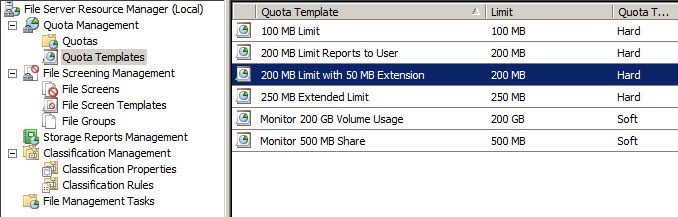
Figure 1 – Disk Quota Templates in FSRM
Double-click the template in the central pane and see that a hard quota limit of 200 megabytes is set in Space limit. In Notification thresholds at the bottom of the dialog, various actions are taken when a percentage of the space limit is reached: 85 percent, 95 percent and 100 percent, respectively. When a user reaches the 200MB limit on the server, three actions are performed: e-mail, event log and command. Select the 100 percent threshold and click Edit.
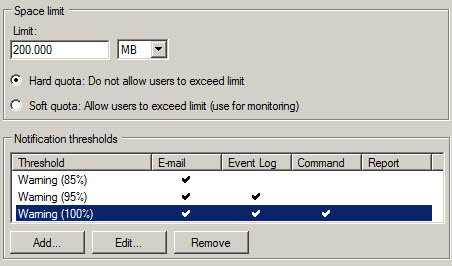
Figure 2 – Warning Thresholds
A message to the administrator and user is configured on the Email Message tab. In the message, predefined variables have been inserted, such as [Quota Path] and [Quota Used Percent], to dynamically add useful information to the message. FSRM can be configured to use an SMTP server by right-clicking File Server Resource Manager in the left pane.
Select Configure Options from the menu, and enter the SMTP server name on the Email Notifications tab. Switch to the Event Log tab in the Threshold Properties dialog where event log entries can be set up in a similar way to e-mail notifications using variables.
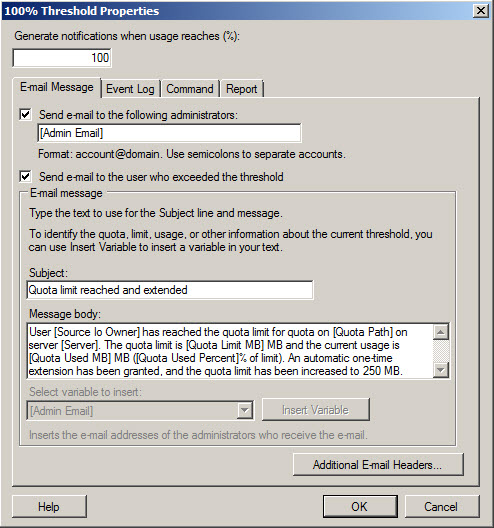
Figure 3 – E-mail Notifications
The Command tab is where the most interesting actions are defined. As the template name suggests, we’re going to give the user a little breathing room and extend the quota limit by 50MB. In practice, the quota is modified using the DIRQUOTA.EXE command-line tool based on a second template that’s configured with a 250MB limit and no extension.
The following command modifies the existing quota using settings from the 250 MB Extended Limit template. [Quota Path] is a pre-defined variable referring to the file path to which the quota will be applied. DIRQUOTA.EXE QUOTA MODIFY /PATH:[QUOTA PATH] /SOURCETEMPLATE:"250 MB EXTENDED LIMIT"
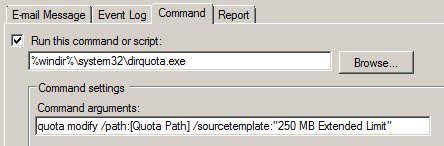
Figure 4 – Commands
Now that you understand how the features configured in the template work, you can either use one of the existing templates or define your own to create a disk quota. Click Quotas in the left pane and the default quota for the system drive will be displayed on the right. To create additional quotas, click Create Quota in the Action pane. In the Create Quota dialog, add a file path for the new quota, select a template and click Create.
File Screening
For File Screening, again, there are a series of predefined templates to get you started. Expand File Screen Templates in the left pane and double-click Block Executable Files on the right. Active and passive screening types are analogous to hard and soft quotas. File groups can be selected for screening, or you can create your own groups. All other actions follow the same principles that are found in disk quotas.
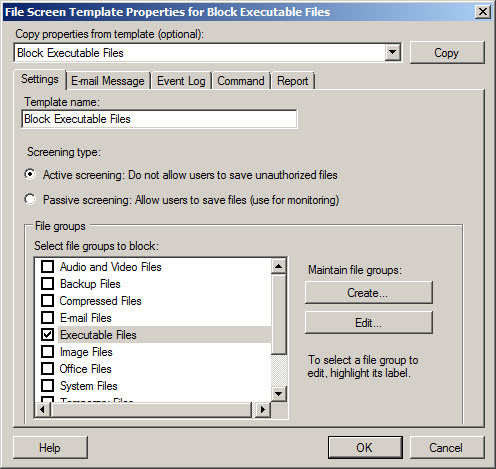
Figure 5 –File Screen Template
Right-click File Screen in the left pane and select Create File Screen from the menu. Set a file path and select a template. File screen exceptions can also be applied to specific file paths to override settings set further up a folder hierarchy.
Reporting
FSRM has a set of built-in reports that can be scheduled to run as part of a report task. Right-click Storage Reports Management in the left pane and select Schedule a New Report Task from the menu. On the Settings tab, add a file path on which the report will be generated and under Report data, select the reports to run. The required report formats can be selected at the bottom of the dialog.
Reports are saved by default to the STORAGEREPORTS\SCHEDULED folder on the system drive but can be also be sent by e-mail. Switch to the Schedule tab and click Create Schedule. In the Schedule dialog click New, modify the settings as required and click OK. Then click OK in the Storage Reports Task Properties dialog. You can either wait for the reports to run on schedule or right-click a report and select Run Report Task Now from the menu.

Figure 6 – FSRM Report
Why It Works for IT
These simple tools, along with File Classification (see Control Data Sprawl with File Classification in Windows Server 2008 R2) make it easy for sysadmins to plan for current and future storage needs and provide users with a better service, making sure that space is always available for critical business data. The basic features of FSRM are easy to configure, come free in newer versions of Windows Server, and don’t require a great learning curve.