


How to Use User State Virtualization for Backup and Migration

Microsoft’s User State Virtualization technologies alleviate the need to rely on users to back up their data or deploy backup agents to every client device. User State Virtualization can also be useful in desktop migration scenarios. Improvements in Offline Files provide a more reliable experience, and most important, users no longer need to manually synchronize changes when a connection is re-established to a remote server.
User State Virtualization is an umbrella term used to describe three technologies: Roaming Profiles, Folder Redirection and Offline Files. Together, these features give users access to their data and settings from wherever they log on to the network and ensure there’s always a copy of important data on a server for safekeeping.
Roaming Profiles
When a user logs on to a computer for the first time, a profile is created on the local disk to store the user’s files, application settings and registry data (ntuser.dat). The profile is loaded whenever the user logs on to the PC.
If Roaming Profiles are configured for the PC in Group Policy or per user in Active Directory, the user’s local profile is copied to the given server path at logoff. The profile is then synchronized between the server and any device that the user logs on to.
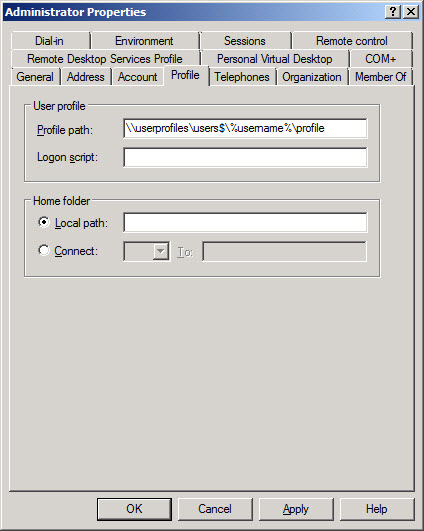
Figure 1 - The Roaming Profile path for a user in Active Directory Users and Computers (ADUC)
Group Policy settings are available, which allow administrators to exclude folders from Roaming Profiles. Other controls include the automatic deletion of old user profiles and logon behavior over slow network connections.
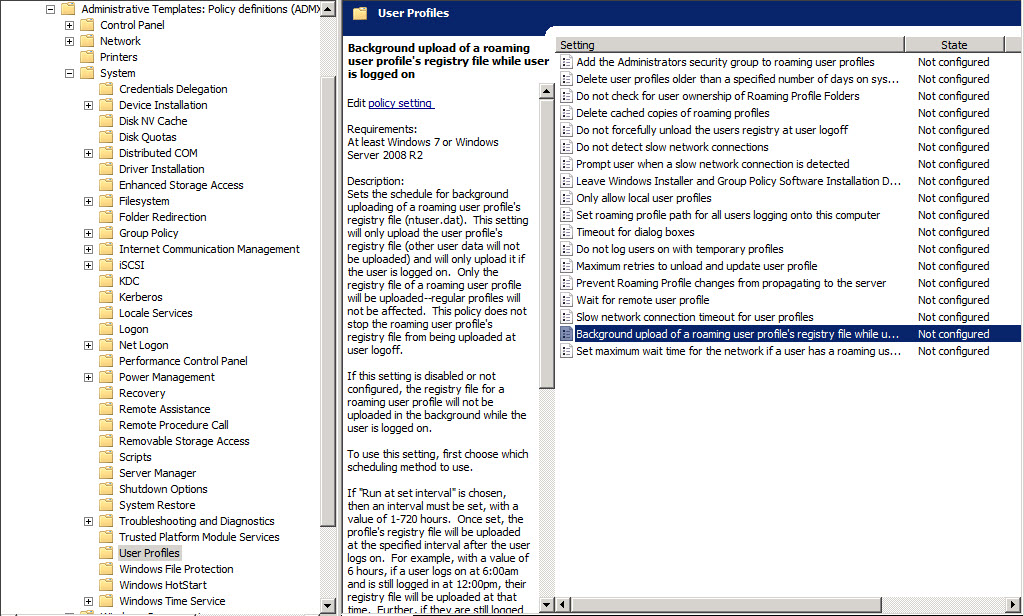
Figure 2 – Group Policy settings for Roaming Profiles
It’s important to remember that when using Roaming Profiles, changes are only synchronized to the server when the user logs off. This is in contrast to Folder Redirection in online mode, where changes are immediately available from other PCs.
Roaming Profiles performance has been enhanced in Windows 7 to allow registry settings (ntuser.dat) to be uploaded to the server while users are logged on, reducing the time it takes to perform a logoff operation. This behavior can also be controlled via Group Policy.
Folder Redirection and Offline Files
Folder Redirection lets system administrators set the file path for default user folders, such as Documents and Desktop, moving storage from the local disk to a server. Changes made on one PC are immediately available from any other PC to which a user logs on.
Offline Files, sometimes referred to as “client-side caching,” works with Folder Redirection to ensure that notebook users always have access to their files when there is no connectivity to the corporate network. Group Policy settings for Folder Redirection can be found in the User Configuration section of a Group Policy Object (GPO) under Policies > Windows Settings > Folder Redirection. You can let Windows manage the server location for redirected folders or, in more advanced environments, specify a destination according to users’ Active Directory group membership.
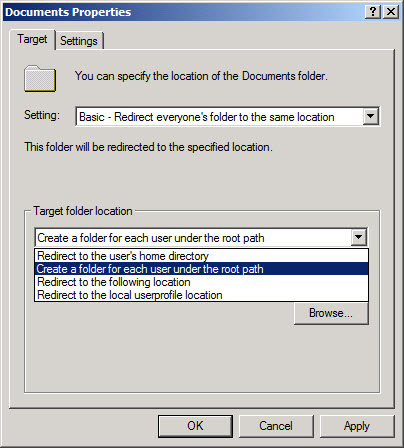
Figure 3 – Setting Up Folder Redirection for the Documents folder in Group Policy
When setting a path for Folder Redirection, select Create a folder for each user under the root path and let Windows create the folders automatically to avoid problems with security access control lists (ACLs).
Availability With the Distributed File System
After adding the Distributed File System (DFS) into the mix, it’s possible to specify a DFS path in the basic or advanced locations for redirected folders, ensuring access to the closest replicated copy of a file if users travel between sites.
In all but the smallest networks, DFS can also prove useful by providing some level of redundancy should a server need to be taken out of service, transparently providing a replicated copy of users’ data without the need for any reconfiguration. For more information on DFS, see http://www.microsoft.com/windowsserversystem/dfs/default.mspx.
Folder Redirection vs. Roaming Profiles
While Folder Redirection provides a means of transparently redirecting users’ files and folders to a server, with the additional option to synchronize a copy locally for offline use, Roaming Profiles keep all data and settings stored locally until the user logs off, when all changed files and settings are synchronized with a server.
In contrast, Folder Redirection just handles user data, unless you opt to redirect the AppData folder. While generally not recommended because of application compatibility issues, this allows users’ program settings to follow them, assuming the line-of-business applications were developed following Microsoft’s best practices.
The Best of Both Worlds
Combine the benefits of Roaming Profiles with the performance of Folder Redirection by configuring both features to work at the same time. It’s possible to exclude folders, such as Documents, that contain large files from Roaming Profiles, but use Folder Redirection to make sure the contents of the Documents folder are always synchronized with a file server.
When setting up Roaming Profiles, configure the path in Active Directory Users and Computers (ADUC). If you use Group Policy to configure Roaming Profiles per computer, there’s no way to exclude administrators.
Improvements in Offline Files in Windows 7
Windows 7 brings significant improvements to the user experience when Offline Files is enabled. When a user logs on for the first time, their files are first moved to a local disk cache before being transferred to the server, greatly reducing the amount of time it requires to log on.
Additionally, if a user is in offline mode, Windows 7 detects when the network becomes available and automatically transitions back to online mode. By default, Windows 7 enables support for deletion and renaming of files and folders when working offline.
The Usually Offline feature, which allows users connected to remote servers on slow networks to link to work from an offline cache, has been enhanced in Windows 7 to include a background synchronization feature that helps to ensure files are always up to date on servers and clients. This can be enabled and configured using Group Policy.